Step 8. One CS2 for all VMs
Normally every virtual machine downloads its own copy of CS2 - about 80 GB per machine.
This feature installs CS2 once on your main computer (the host), and the virtual machines take it from there. Four machines then use the same 80 GB as one.
This feature is new and lightly tested
Things can go wrong: a machine may "lose" the game after a reboot, and after a large CS2 update Steam on a VM may report Disk write error. What to do is at the bottom of this page.
If you run one or two VMs and have the disk space, skip this step.
What you'll need
- A separate Steam account for the host. It takes no part in farming. A maFile is optional, but without one Steam Guard on that account has to be off.
- Steam on every VM - install it via Install software.
- About 80 GB on the host for the game itself.
1. Set up the host
Run CruxSetup.exe on your main computer (not in a VM) as administrator and open Shared CS2 for VMs.
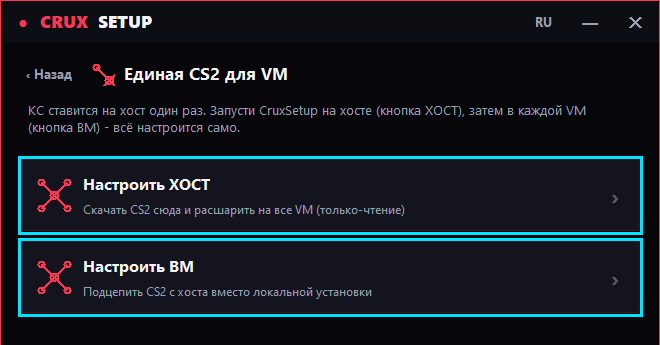
Choose Set up the HOST, fill in the fields and press START.
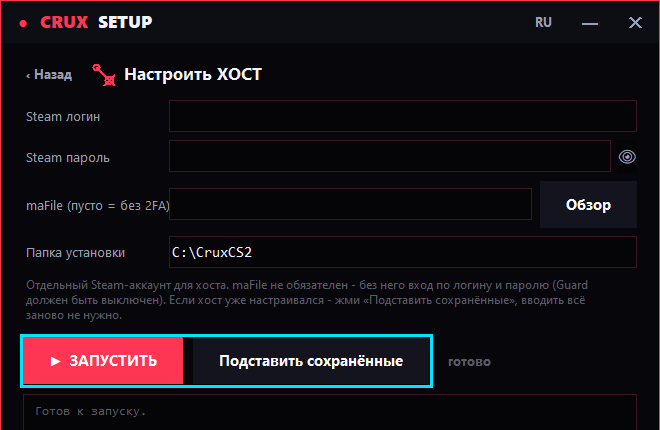
| Field | What to enter |
|---|---|
| Steam login | the login of the separate host account |
| Steam password | its password |
| maFile | that account's maFile if Guard is on; leave blank if it is off |
| Install folder | where to put the game, C:\CruxCS2 by default |
CruxSetup sets up the shared folder and starts the CS2 download in the background. It takes a long time - it is those 80 GB, and no progress is shown in the window: watch the size of the install folder (C:\CruxCS2).
The folder stayed empty
Then the Steam login did not go through - usually Guard, or a typo in the login. Check the details and run Set up the HOST again. Until the game is on the host there is no point attaching VMs to it.
Setting it up again?
The Load saved button fills in the login, password and maFile from last time.
2. Attach the virtual machines
This step is done inside each VM, one at a time. Run CruxSetup.exe there as administrator, open Shared CS2 for VMs → Set up this VM and press START.
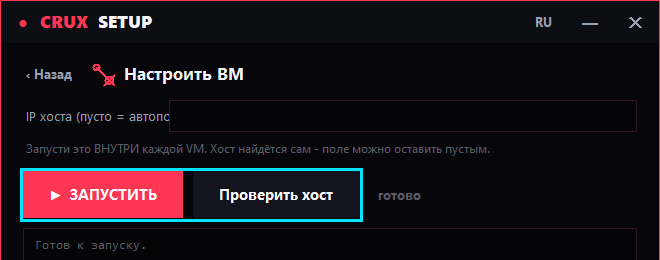
Leave the IP field empty - the machine finds the host by itself. The Probe host button shows whether there is a connection.
After that Steam on the virtual machine sees CS2 as installed, and the panel launches it as usual.
If the VM runs a VPN
Add the host address to the VPN's exclusions (split tunnelling) - the Probe host button shows it. Otherwise the VPN swallows this traffic too, the machine loses sight of the shared folder, and CS2 disappears from Steam.
Done
The host downloads CS2 updates itself, and the machines pick up the new version automatically.
Worth knowing
- The machines are not linked to each other. Settings, configs, HWID, IP and proxies stay per-VM, exactly as before.
- Internet on the VMs is unchanged. The shared folder runs over a separate network, and Steam never sees it.
If something goes wrong
| What you see | What to do |
|---|---|
| Steam on the VM says CS2 isn't installed, or the game disappeared after a reboot | Run Set up this VM in that VM again. |
Disk write error when CS2 starts |
The host is re-downloading the game after an update. Wait for it to finish and reboot the VM. |
| A CS2 update "hangs" | Check that the download on the host finished, then restart the VM. |
| The host is not found | Check the VPN exclusions. If there is no VPN, power the VM off and on. |
If none of that helps, message support.