CRUX MANAGER
CRUX MANAGER is a separate app for bulk work on Steam accounts.
The panel farms - it plays matches and collects drops. The manager does everything else people normally do by hand: bulk-selling drops, buying games and TF2 keys, warming accounts up, running MarketTM.
A separate subscription is required
You can buy it in the bot, in the same place as the panel subscription. The activation key is entered the first time the manager starts.
Installation
The easiest way is CruxSetup.exe → Install software → tick CRUX MANAGER (see Step 6). It is unpacked into C:\CruxManager.
Or from the bot menu - the Download button.
The manager needs neither a virtual machine nor Hyper-V - it runs on an ordinary computer.
Loading accounts
The Import button above the table.
| Source | What it gives |
|---|---|
accounts.txt |
a LOGIN:PASSWORD list, one per line |
| maFile folder | attaches maFiles to existing accounts, or adds new ones along with them |
| Proxies from txt | a proxy list, which is then handed out to accounts |
The panel's crux_db.json |
brings accounts over from Crux Panel |
Passwords are stored encrypted
Passwords, tokens and maFile secrets are encrypted and tied to your computer - they are never on disk in the clear.
The accounts table
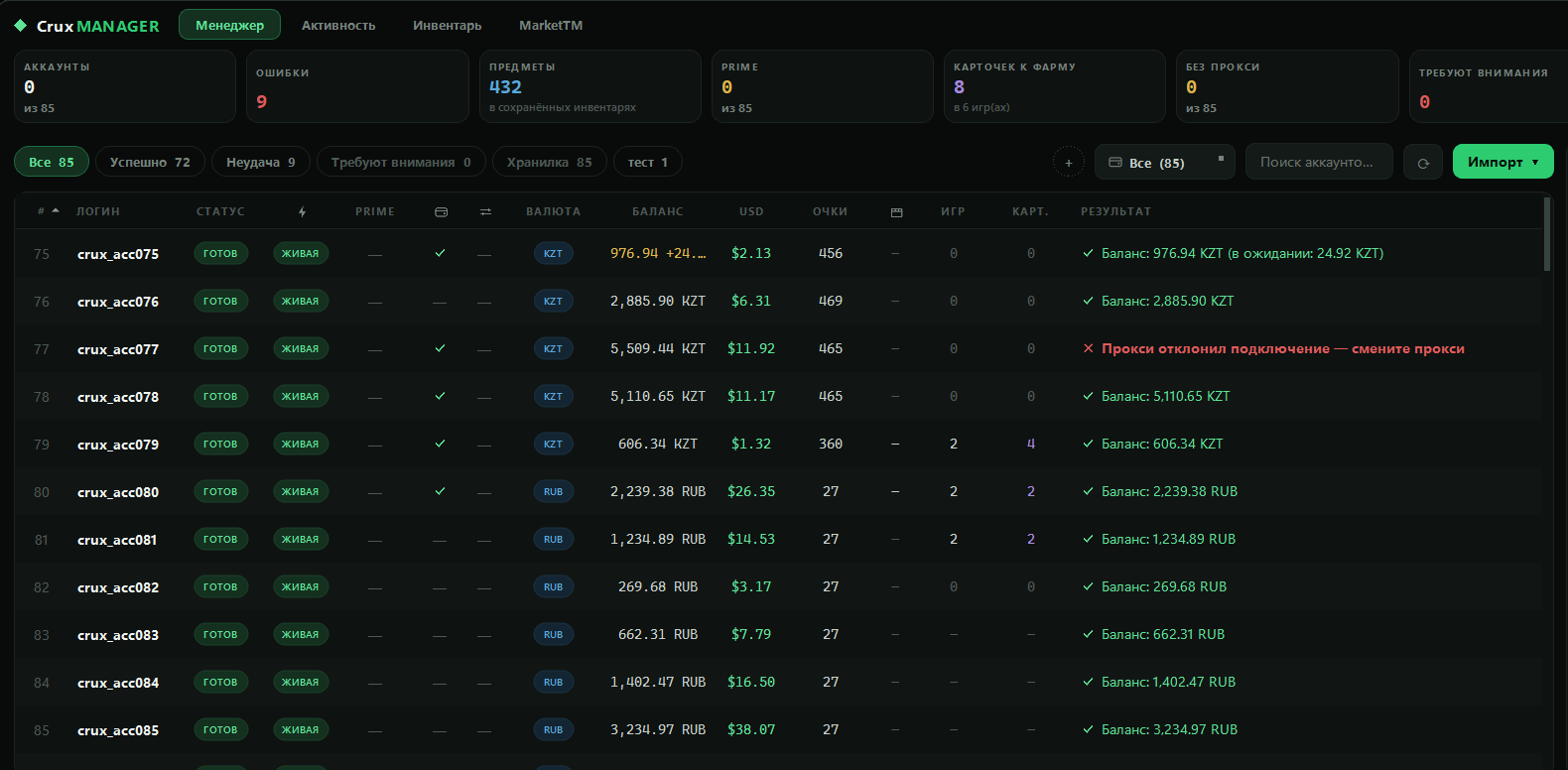
Each row is an account and each column is something known about it: sign-in status, Prime, market and trade access, currency, balance, Steam points, items, cards, proxy and the result of the last action.
Above it are tiles with totals for the whole list and filters: Success, Failure, Needs attention, Storage. You can make your own too - select the accounts you want and save the selection as a filter.
Right-clicking a row opens what applies to that single account: copy the login, the login-password pair, the profile link, the trade link or the 2FA code; rotate the proxy; send the account to the Inventory or MarketTM tab.
You can hide columns you don't need
Right-click the table header and the column disappears. If a note about the window being too narrow shows up at the bottom, that is what it is about.
Actions
The right-hand column is the whole point of the manager. Select accounts, press an action, and it runs for all of them. Anything you use often can be pinned to the top: right-click the action → Add to favourites.
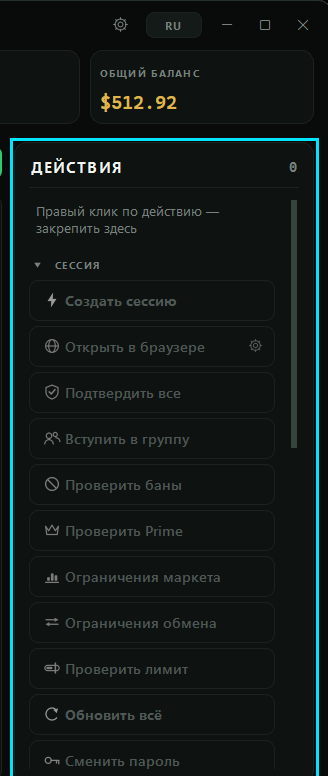
Actions come in three groups.
Session
| Action | What it does |
|---|---|
| Create Session | Signs in and stores the session so later actions don't have to log in again |
| Open in browser | Opens Chrome already signed in as the account, in both the store and the community |
| Confirm all | Approves every pending mobile confirmation, like "Confirm all" in the Steam app |
| Join group | Joins one Steam group on every selected account, from a link |
| Check bans | VAC, trade ban, limited-account status |
| Check Prime | Whether the account owns CS2 Prime |
| Check Market Restrictions | Whether the account may use the Community Market right now |
| Check Trade Restrictions | Whether the account may send trades, and how long Steam would hold the items |
| Check limit | Whether the account's restrictions have been lifted |
| Refresh everything | Re-reads every column at once. Takes a while, but afterwards the whole table is current |
| Change password | Sets a new password and writes it to changed_passwords.txt |
Changing a password signs the account out
Every stored session stops working, and the only copy of the new passwords is that text file. Don't lose it.
Economy
| Action | What it does |
|---|---|
| Update Balance | Reads the wallet balance and currency |
| Update Steam Points | Reads the points balance |
| Claim free games | Adds games the Steam store is currently giving away. Free-to-play titles are left alone |
| Buy item | Buys an item from a link on each account, paid from that account's own balance |
| Buy for Steam points | Buys a Points Shop reward. Give several links and each account takes one at random |
| Buy TF2 keys | Spends the whole spendable balance on Mann Co. keys at the cheapest market price |
| Buy game by link | Buys one specific game or package from a link or a SubID |
| Buy CS2 Prime | Buys Prime on accounts that don't have it yet |
| Buy cheapest game | Finds and buys the cheapest paid game in the account's own region |
| Check cards | How many trading cards each account still has coming, and across how many games |
Prices are per region
Every account has its own region and currency, so the price is quoted for each account separately.
Trading
| Action | What it does |
|---|---|
| Send trades | Sends items to your trade links, split evenly between them |
| Accept incoming trades | Accepts only the incoming offers where the account gives nothing away: gifts and one-sided deliveries |
| Reload Inventory | Re-reads the inventory using the same games and item rules as Send trades |
| Check hold | How many items an account holds and when the nearest hold ends |
The gear icon next to an action opens its settings: where trades go, which games and items count, whether to use a proxy.
The Activity tab
This is where accounts are put to farm - clocking hours, earning cards and picking up items from free games.
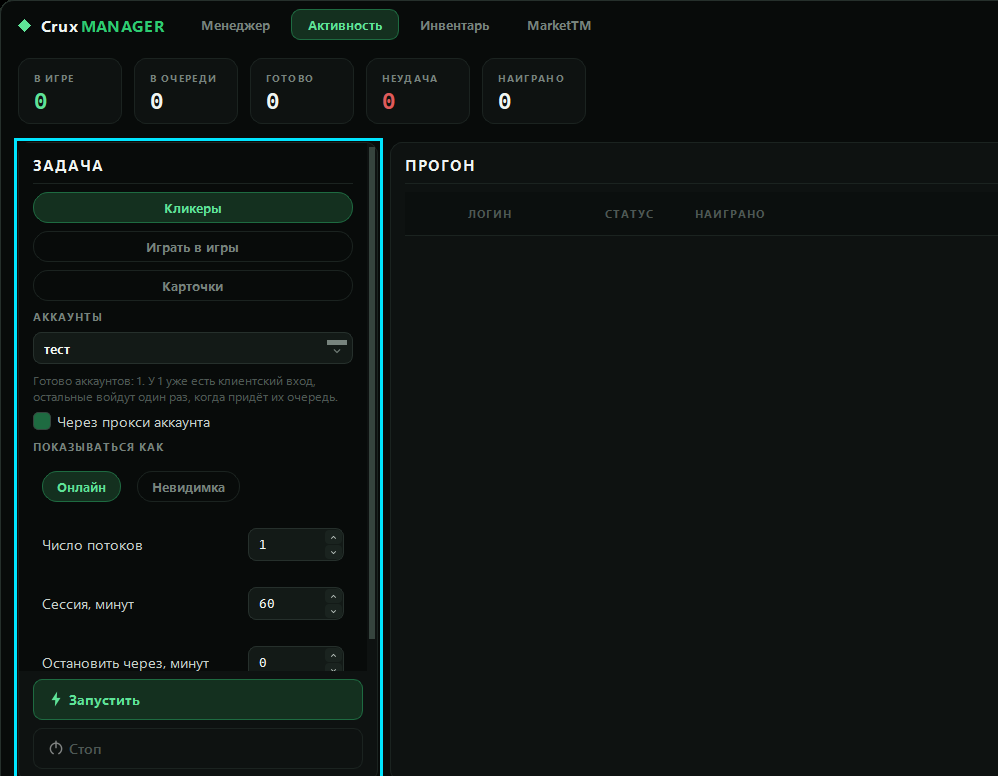
The run is set up on the left and watched on the right: one row per account, with the time actually served and the reason if an account isn't playing.
Three kinds of task:
- Clickers - free games that drop items just for being open.
- Play games - hour boosting in the games you paste.
- Trading cards - the games each account is still owed card drops in. Run the Check cards action first.
You set the number of threads, the session length, and how the account appears in Steam - Online or Invisible. Runs go through the account's proxy by default.
One run at a time
A second run cannot start while one is going: it would mean two client sessions on one account, and the second evicts the first.
The Inventory tab
What the accounts actually hold.
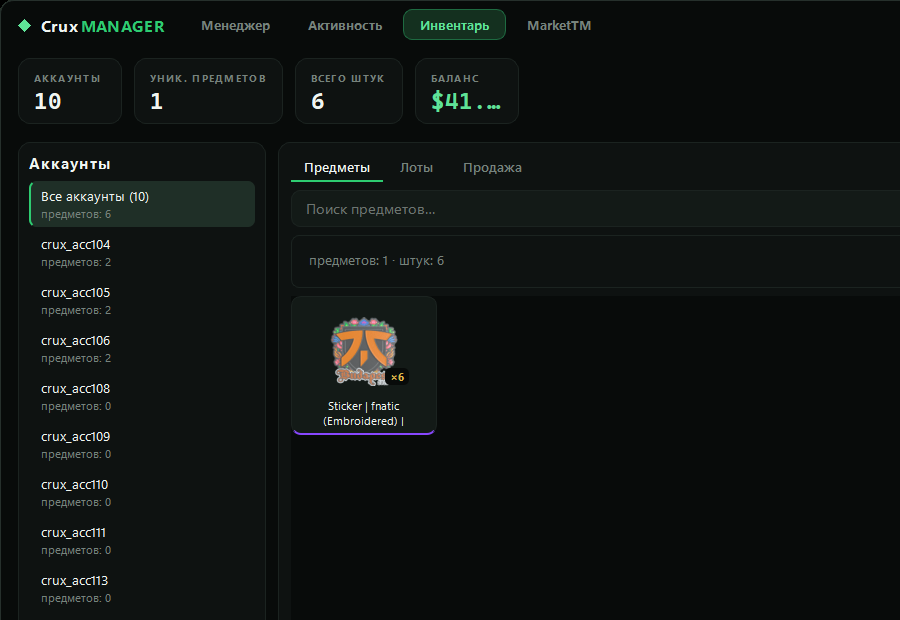
Send accounts here from the table (right-click → Send to Inventory) and the tab shows items for those accounts only.
Three views: Held items - what sits on the accounts; Listings - what is already up for sale; Sell - putting items on the Steam Community Market.
The MarketTM tab
Selling items on market.csgo.com.
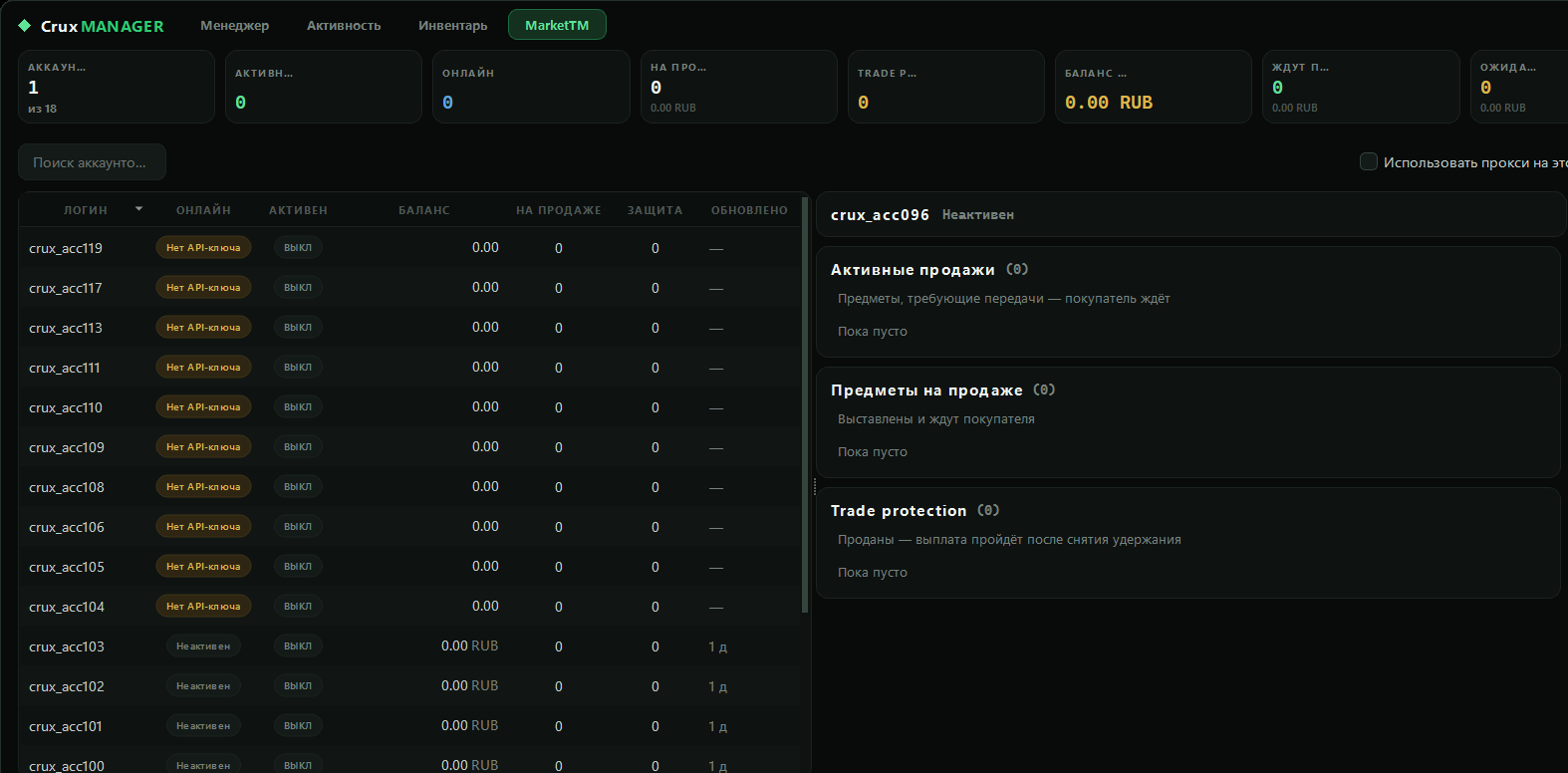
The main switch is Active on each row: an active account is kept online and selling by the manager itself. Everything else on screen is observation: active sales, listed items and items under trade protection.
The actions on the right: list items, deliver sold ones, check trades, turn on automatic delivery, set the API key and the trade link, send the balance.
The site's API key is required
Without it an account can do nothing in this tab. The key is either entered by hand or created with the Create API key on the site action.
Proxies
Proxies are loaded with the Import button and handed out to accounts. The No proxy tile at the top shows how many accounts still have none, and clicking it filters down to exactly those. To change one account's proxy, right-click its row.
Once imported, every request to Steam goes through the account's proxy. On the MarketTM tab, proxies are used for the market only.
If something doesn't work or isn't clear, message support right from the bot.