Step 5. Transfer files to the VM
The easiest way to move files (the panel, accounts, maFiles) into the virtual machine is Enhanced Session - Hyper-V's enhanced session mode. With it you can simply copy files between your main PC and the VM.
Turn Enhanced Session off before farming
Enhanced Session is only for transferring files. Be sure to disable it before starting the farm - in this mode you may see black bands on the window background (a VMConnect rendering quirk) and it can interfere with normal operation. Move your files, then turn it off.
Enable Enhanced Session
-
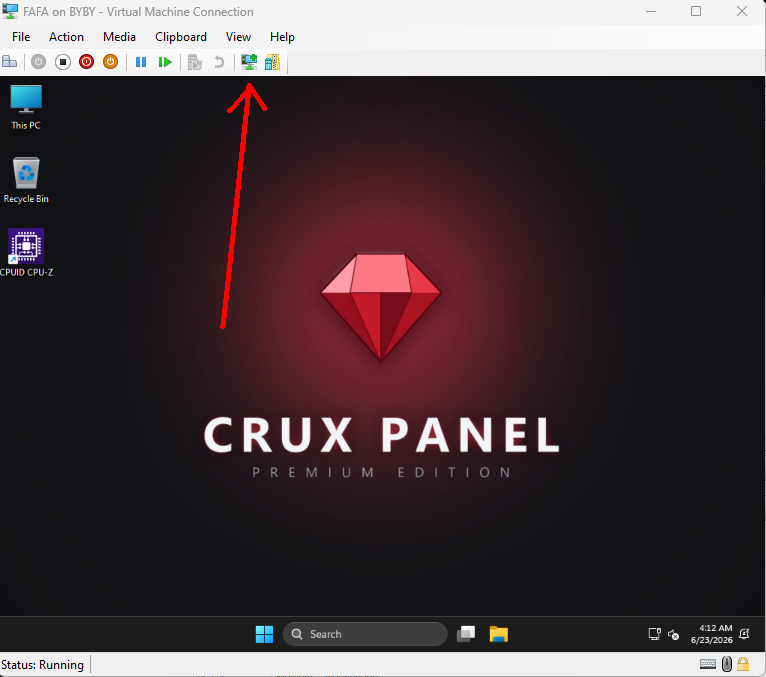
In the VM window, click the enhanced session icon at the top.
-
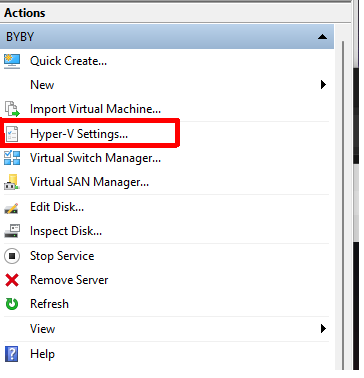
If the icon is greyed out, open Hyper-V Manager (
Win + R→virtmgmt.msc). -
Go to Hyper-V Settings.
-
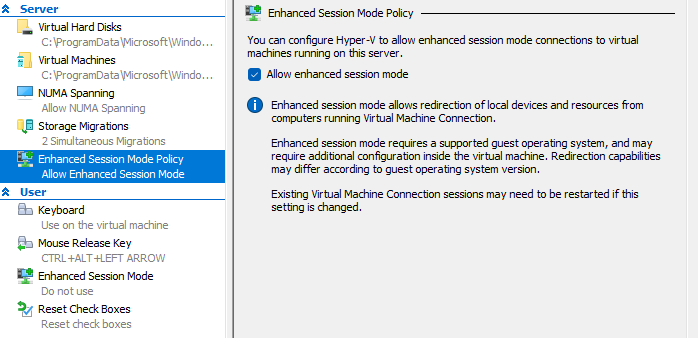
Make sure the enhanced session option is enabled (the checkbox is ticked).
How to move files
Once Enhanced Session is on, when you connect to the VM you can copy and paste files between your main PC and the VM (Ctrl+C / Ctrl+V). That's how you'll move the panel archive in the next step.