Step 4. GPU driver passthrough
The virtual machine has no graphics drivers out of the box. You need to "pass through" the GPU from your main Windows - without it CS2 won't launch.
1. Make sure drivers are installed on the host
First, confirm that your main PC has up-to-date graphics drivers.
The driver version matters for stable operation:
| Graphics card | Driver version |
|---|---|
| RTX 20xx and older | 546.33 |
| RTX 30xx / 40xx | 572.70 |
| RTX 50xx and newer | latest Game Ready / Studio |
Follow the screenshots below to install:
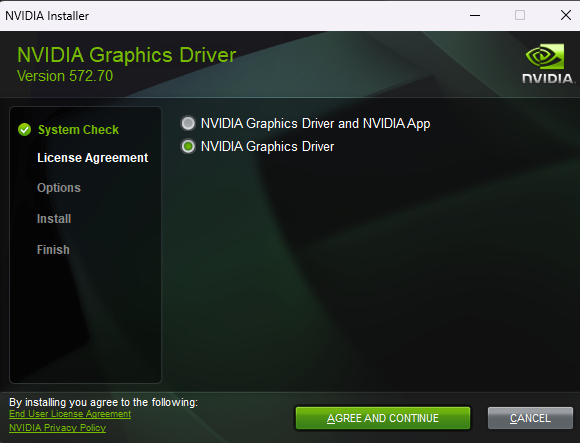
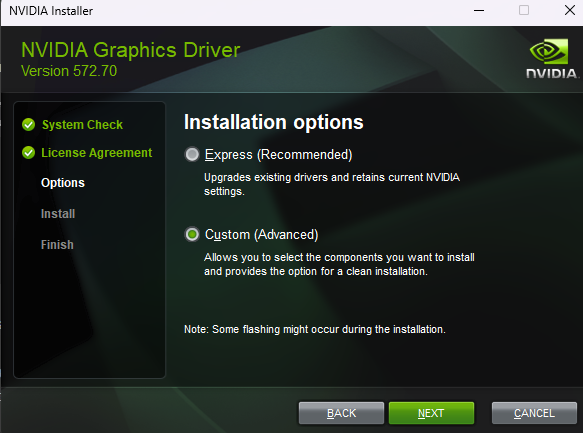
Install the driver via AMD Software: Adrenalin Edition - it's a couple of clicks, the exact version isn't critical.
2. Pass the GPU into the VM
- The virtual machine must be powered off.
- Run
CruxSetup.exeon your main PC. - Open the
GPU Passthroughtab. - Enter the name of your virtual machine (the one you set in Step 3).
3. Verify
Start the virtual machine and check that the GPU was detected:
- Press Win + R, type
devmgmt.mscand press Enter. - Open Display adapters.
- Make sure your graphics card is listed, not just the basic adapter.
Done
The GPU is passed through. If it's not in the list, make sure the drivers are installed on your main PC, repeat the passthrough (step 2), and confirm the VM was powered off.