Panel features
This page covers every tab and what it does. If you're still setting things up, go through Setup first and come back here to fine-tune the panel.
Accounts tab
The main screen: your account list and their statuses.
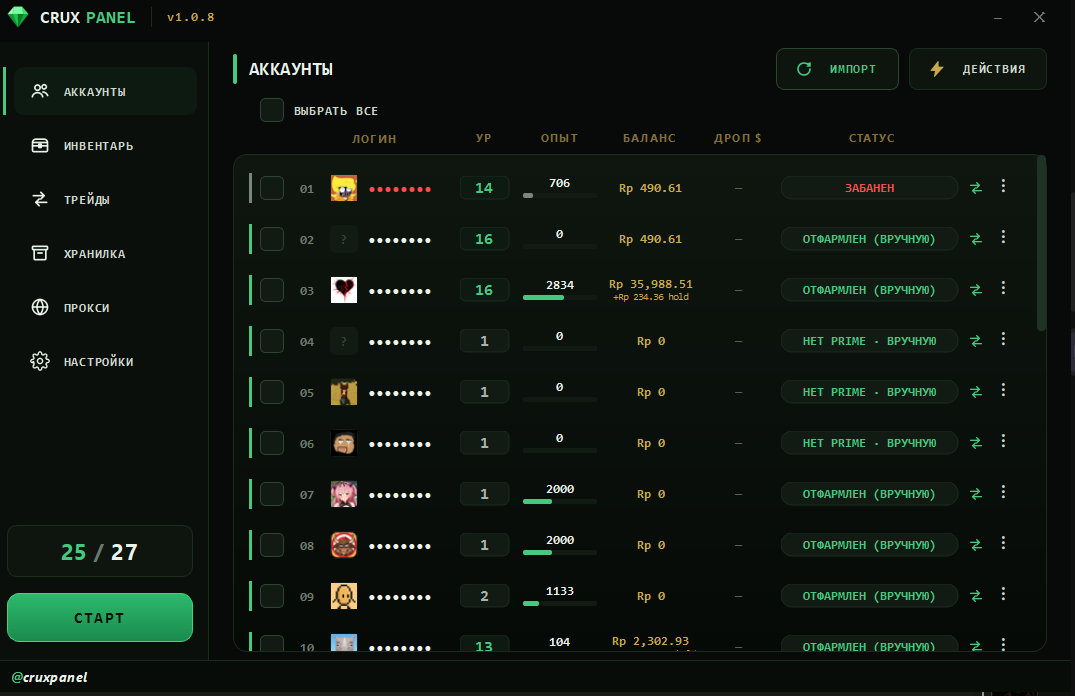
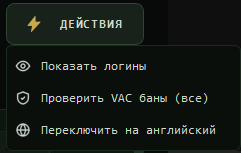
In the top-right corner is the ACTIONS button with global actions: check accounts for bans, hide logins, switch language (Russian / English).
Per-account actions
Right-click an account to open its action menu.
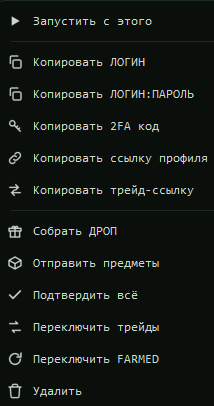
You can select several accounts at once - the action then applies to all of them.
| Action | What it does |
|---|---|
| Collect drop | Claims the uncollected weekly drop on the account |
| Send items | Sends items to a configured trade link (set up in the Trades tab) |
| Confirm all | Approves all pending mobile authenticator confirmations |
| Toggle trades | Enables/disables sending trades from the account (status shown on the right) |
| Toggle FARMED | Manually marks an account as farmed so it won't enter the queue |
| Delete | Removes the account from the list |
Inventory tab
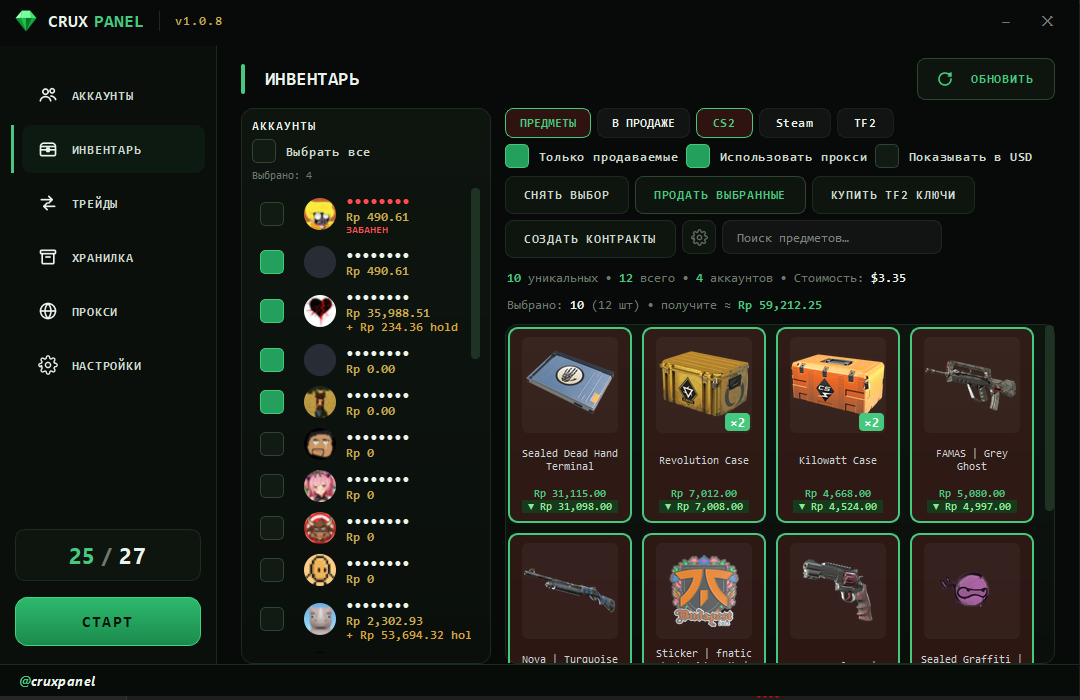
Manage account inventories straight from the panel - no need to open Steam.
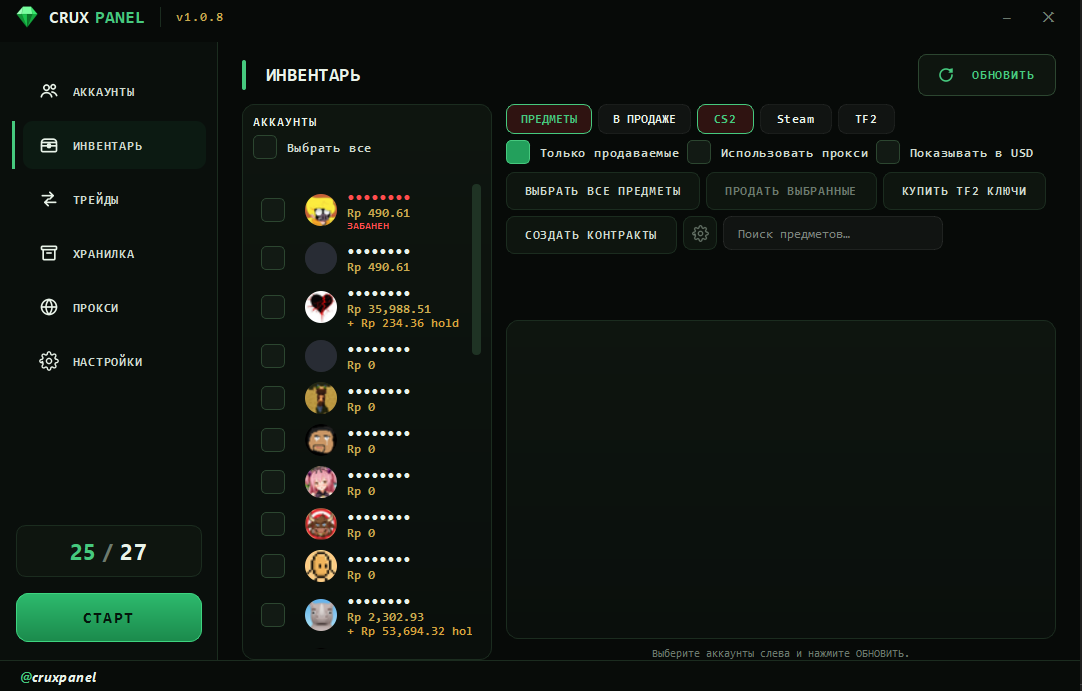
- Items / On sale - switch between the current inventory and items already listed on the market.
- Game: CS2 / Steam / TF2 - which inventory to show.
- Marketable only - hide non-tradable items.
- Use proxy - route requests through a proxy (recommended; list is on the Proxies tab).
- Show in USD - display all prices in dollars.
- Select all - select the whole list.
- Sell selected - list the selected items for sale.
- Buy TF2 keys - buy Mann Co keys for the full balance of the selected accounts.
- Create contracts - build trade-up contracts from all consumer-grade items on the selected accounts.
Each item shows its sale price and its instant-sell price.
Trades tab
This is where you decide where and which drops are sent.
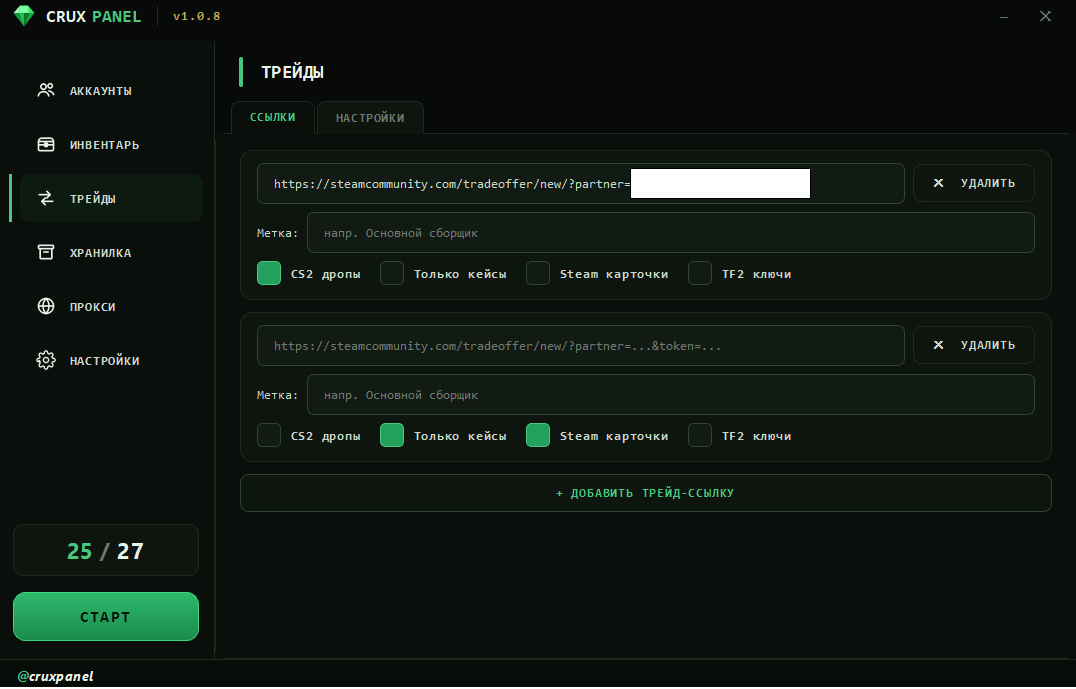
- Add and remove the trade links that drops are sent to.
- Choose which drop goes to which link.
Settings sub-tab
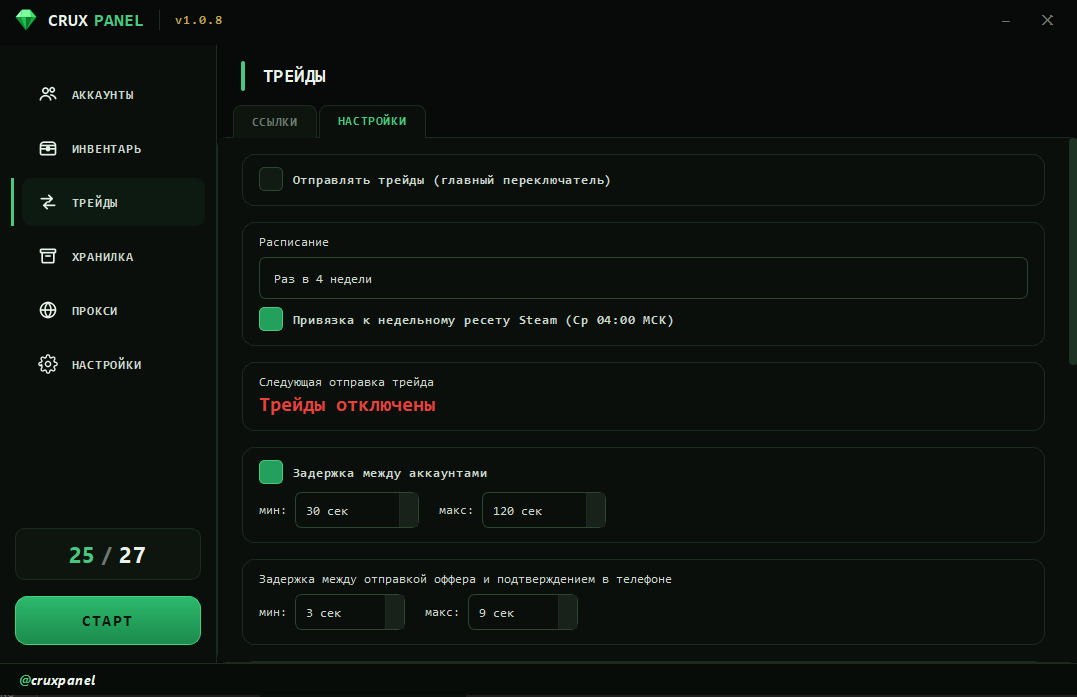
- Send trades - the master switch for auto-sending. If off, no trades are sent.
- Send schedule - automatically send items on a set interval.
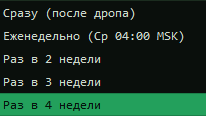
- Tie to Steam weekly reset - send a trade right after the weekly reset.
- Next trade - when the next batch will be sent.
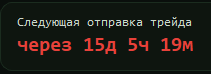
- Delay between accounts - random pause before moving to the next account.
- Delay between offer and confirmation - random pause before confirming the trade on the phone.
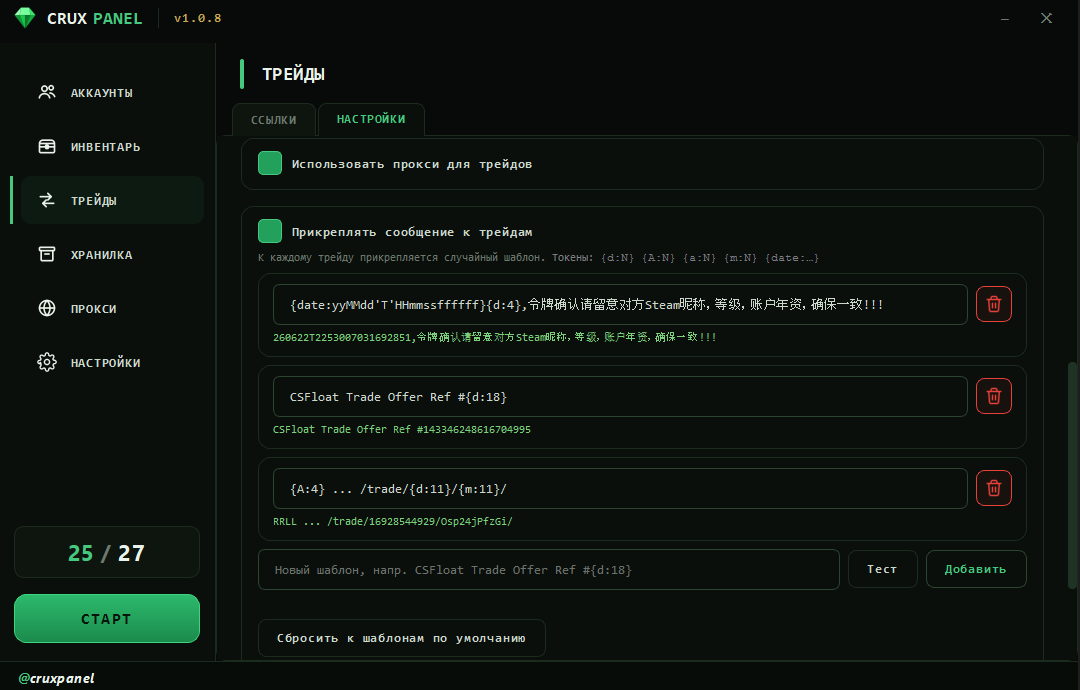
- Use proxy - send trades through the loaded proxies.
- Attach message to trades - adds your template to the offer (mimics a purchase on third-party marketplaces).
You can also exclude specific items from being sent.

Storage tab
A receiver account: it only accepts gift (incoming) trades.
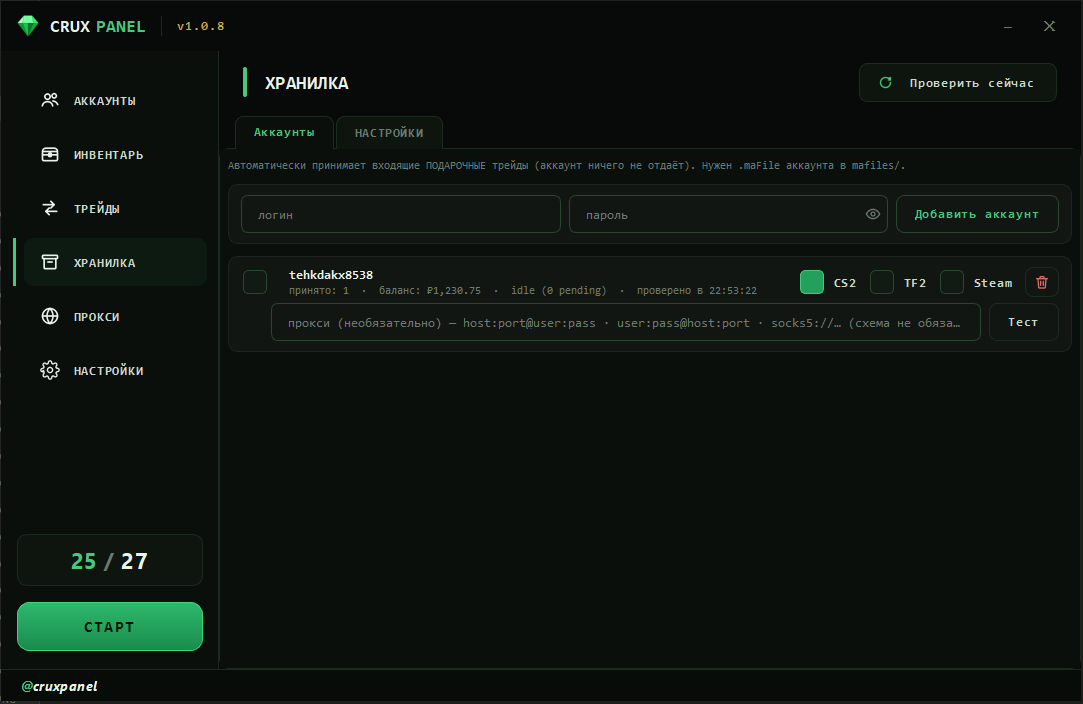
- The account is added with login and password.
- Proxy support.
- Accept trades for the games you need (CS2 / TF2 / Steam).
Settings sub-tab
-
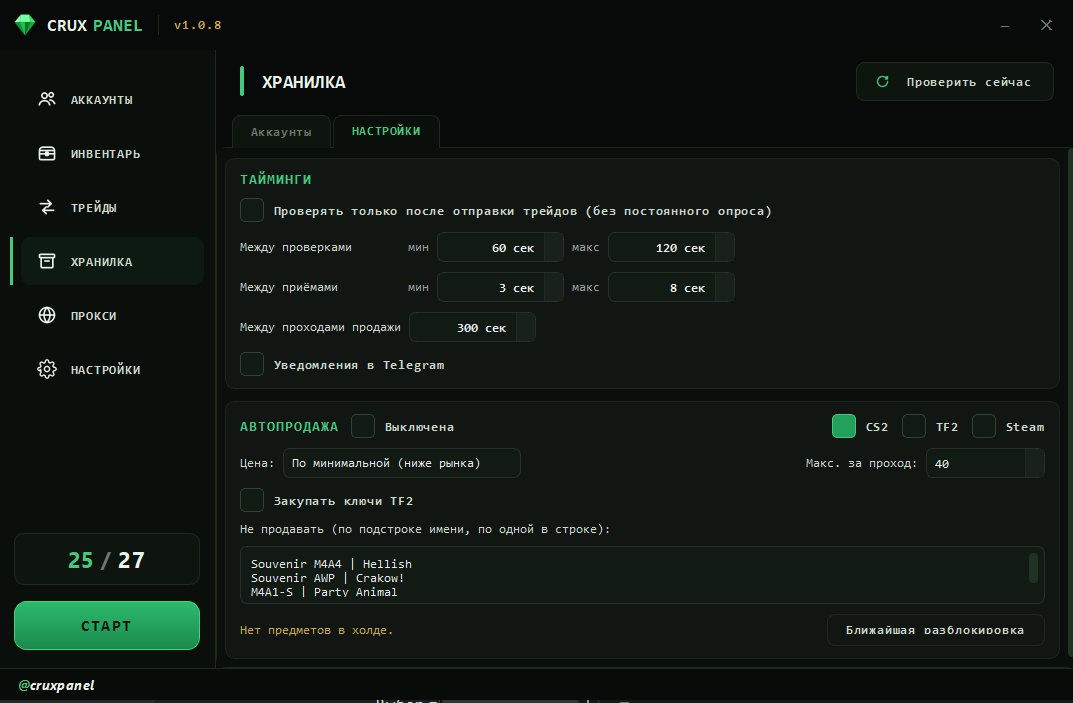
Check only after sending a trade - the panel checks incoming trades not constantly, but only when it sent one itself from the Trades tab.
Note
Enable it if you want fewer requests to Steam (recommended). Even without it, the requests are small and infrequent.
-
Timings - tune the delays that make storage behave more human-like.
- Auto-sell - which games to sell in automatically.
- Listing price - at the lowest possible price or at the auto-buy price.
- Max per pass - how many items to list at once before pausing.
- Buy TF2 keys - auto-buy Mann Co keys after the drop is sold.
- Item exclusions - what not to list for sale.
- Upcoming hold-unlock check.
You can also check for incoming trades manually.
Proxies tab
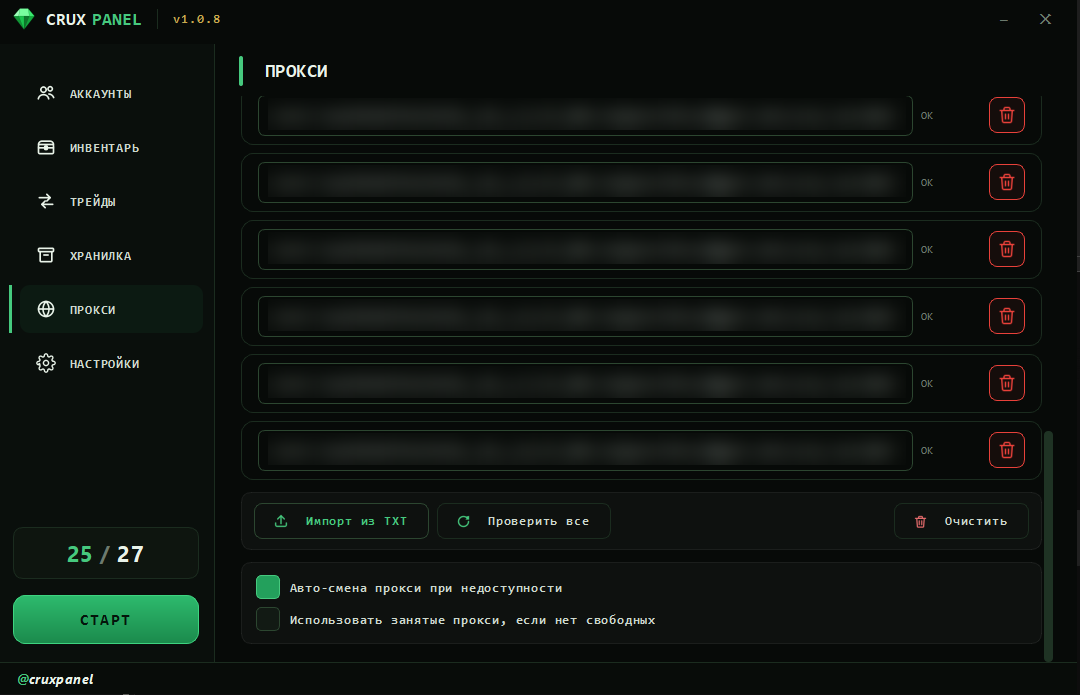
- Import proxies - load a list.
- Availability check - test each proxy.
- Auto-switch on failure - if an account's assigned proxy goes down, the panel picks a free one automatically.
- Use busy proxies when none are free - fall back to already-used proxies when no free ones remain.